LTS is an abbreviation for “Long Term Support”.
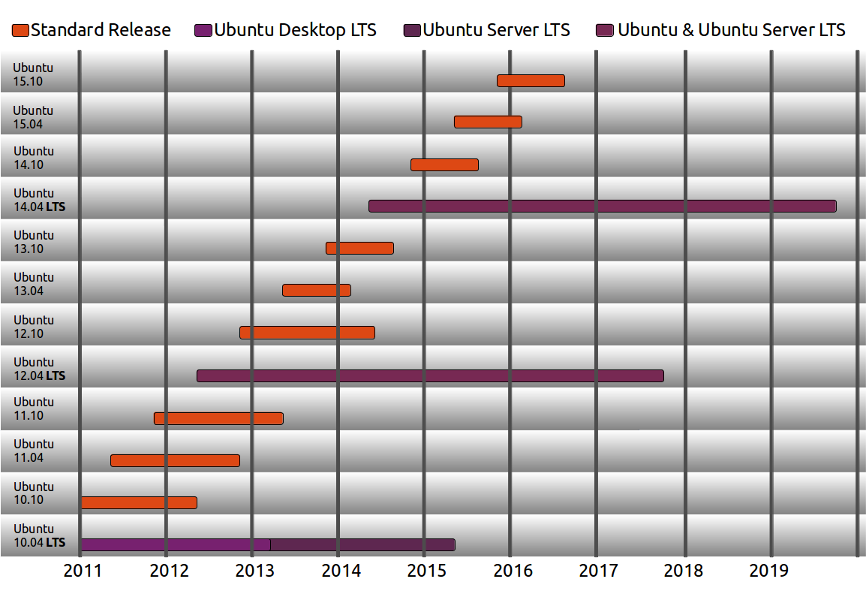
We produce a new Ubuntu Desktop and Ubuntu Server release every six months [diagram below]. That means you’ll always have the latest and greatest applications that the open source world has to offer. Ubuntu is designed with security in mind. You get free security updates for at least 18 months on the desktop and server.
A new LTS version is released every 2 years. In previous releases, a Long Term Support (LTS) version had 3 years support on Ubuntu (Desktop) and 5 years on Ubuntu Server. Starting with Ubuntu 12.04 LTS, both versions will receive 5 years support. There is no extra fee for the LTS version; we make our very best work available to everyone on the same free terms. Upgrades to new versions of Ubuntu are and always will be free of charge.
The LTS designation applies only to specific subsets of the Ubuntu archive. The LTS may not apply to all flavors and remixes of Ubuntu. For example, for 8.04 LTS, Kubuntu chose to move to KDE 4.0 and didn’t issue an LTS release. In 10.04, the Netbook Edition was not an LTS. The project will decide which flavors will be LTS and the support duration for each, early in the LTS development cycle.
Some of the latest support windows are illustrated below:
Release Plan Details
- We are more conservative in our package merge with Debian, auto-synching with Debian testing, instead of Debian unstable.
- We start stabilizing the release early by significantly limiting the number of new features. We will choose which features we package into the LTS release, versus which ones we leave out and allow for users to optionally download and use from a separate archive.
- Avoid structural changes as far as possible, such as changing the default set of applications, lots of library transitions, or system layer changes (example: introducing KMS or hal → DeviceKit would not have been appropriate changes in a LTS).
Furthermore, we define the LTS to be:
- Enterprise Focused: We are targeting server and multiple desktop installations, where the average user is moderately risk averse.
- Compatible with New Hardware: We will make point releases throughout the development cycle to provide functional support for new server and desktop hardware.
- More Tested: We will shorten the development window and extend the Beta cycle to allow for more testing and bug fixing
and clearly state that it is not:
- A Feature-Based Release: We will focus on hardening functionality of existing features, versus introducing new ones1, except for in the areas of Online Services and Desktop Experience2.
- 1. Exceptions for priority projects will be documented.~
~-2. Because these two areas of development are relatively new, they still require new features to satisfy the original reasons for their creation
- Cutting Edge: Instead of doing an automatic full package import from Debian unstable, we will do it from Debian testing1. The benefit we gain from not introducing new bugs and/or regressions outweighs the new features and/or fixes we often get from unstable.
- 1. We reserve the right to selectively pull in updates from unstable, if we believe the stability of the package in Debian is better than what is in the current Ubuntu archive.
LTS Schedule
To support our goal of ensuring stability, we plan to make a small number of changes to the release schedule:
- Reduced Alpha Stage: Because we will have substantially less new code, we can reduce the number of Alpha releases, and extend the Beta stage to allow for more system testing.
- Two Beta Releases: We generally get more bugs filed in the Beta stage because of the increase in user base. In order to address more of these issues, we will provide an additional Beta release.
Quoted from here.

![[Note]](https://docs.openstack.org/trunk/openstack-object-storage/admin/common/images/admon/note.png)