Booting into Single User Mode – (Password Recovery)

Many occasions during commissioning of servers we need to reboot especially to freshen hardware re-configurations. (ain’t that still a bitch). Single user mode is there to help.

Booting into single user mode

  1. At the GRUB splash screen at boot time, press any key to enter the GRUB interactive menu.
  2. Select CentOS with the version of the kernel that you wish to boot and type ‘a' to append the line.
  3. Go to the end of the line and type single as a separate word (press the Spacebar and then type single). Press Enter to exit edit mode.
    You are in Single User mode.

Checking for email server blacklisting

Trying to understand why mail is not being sent ?

[For Sendmail]

If your  tail -f /var/log/maillog logs are showing something like this:

Aug 30 22:43:06 netman sendmail[8100]: starting daemon (8.14.4): SMTP+queueing@01:00:00
Aug 30 22:43:06 netman sm-msp-queue[8109]: starting daemon (8.14.4): queueing@01:00:00
Aug 30 22:43:11 netman sendmail[8102]: q7SIq1Kk011256: to=<david.saliba@jial.com>, ctladdr=<root@netman.lan> (0/0), delay=2+04:51:10, xdelay=00:00:05, mailer=esmtp, pri=3720580, relay=alt4.jial-smtp-in.l.gogglee.com. [XX.125.142.26], dsn=4.0.0, stat=Deferred: alt4.jial-smtp-in.l.googglee.com.: No route to host

Try telnet-ing to the IP  [XX.125.142.26] on port 25:

telnet XX.125.142.26 25

[root@netman ~]# telnet 74.125.142.27 25
Trying 74.125.142.27...
telnet: connect to address 74.125.142.27: No route to host
[root@netman ~]#

Check here to see if your server is blacklisted using this site:

http://www.mxtoolbox.com/blacklists.aspx

There all you need to do is enter your external IP address and see if that is the issue.

If not remember if you are using dynamically assigned IPs there is a good chance that’s the issue try relaying through another server.


Creating a router on a CentOS 6 server

Assuming you want to NAT the network on eth1 and route the traffic to eth0 this is the spell:

Create the forwarding rule:

/sbin/iptables -t nat -A POSTROUTING -o eth0 -j MASQUERADE

and then enable IP forwarding

 echo “1” > /proc/sys/net/ipv4/ip_forward

OR

sysctl -w net.ipv4.ip_forward=1


Permanent setting using /etc/sysctl.conf

If we want to make this configuration permanent the best way to do it is using the file/etc/sysctl.conf where we can add a line containing net.ipv4.ip_forward = 1

/etc/sysctl.conf: net.ipv4.ip_forward = 1

if you already have an entry net.ipv4.ip_forward with the value 0 you can change that 1.

To enable the changes made in sysctl.conf you will need to run the command:

sysctl -p /etc/sysctl.conf

On RedHat based systems this is also enabled when restarting the network service:

service network restart


Windows time stamping in batch files

Creating a time-stamp  in windows can be usful for the automated backups we all SHOULD be doing 🙂


pkzip c:\<source>\*.* c:\<target>\TempZip.zip
ren C:\<target>\TempZip.Zip c:\<target>\TempZip_%date:~-4,4%%date:~-7,2%%date:~-10,2%.zip


Or simply to create a directory for copying open files (Lawrence 🙂 )

set backdir=%date:~-4,4%%date:~-7,2%%date:~-10,2%

mkdir %backdir%

cd %backdir%

etc..


Common Errors and Fixes for OpenStack Compute

The Launchpad Answers site offers a place to ask and answer questions, and you can also mark questions as frequently asked questions.

Credential errors, 401, 403 forbidden errors

A 403 forbidden error is caused by missing credentials. Through current installation methods, there are basically two ways to get the novarc file. The manual method requires getting it from within a project zipfile, and the scripted method just generates novarc out of the project zip file and sources it for you. If you do the manual method through a zip file, then the following novarc alone, you end up losing the creds that are tied to the user you created with nova-manage in the steps before.

When you run nova-api the first time, it generates the certificate authority information, including openssl.cnf. If it gets started out of order, you may not be able to create your zip file. Once your CA information is available, you should be able to go back to nova-manage to create your zipfile.

You may also need to check your proxy settings to see if they are causing problems with the novarc creation.

Instance errors

Sometimes a particular instance shows “pending” or you cannot SSH to it. Sometimes the image itself is the problem. For example, when using flat manager networking, you do not have a dhcp server, and an ami-tiny image doesn’t support interface injection so you cannot connect to it. The fix for this type of problem is to use an Ubuntu image, which should obtain an IP address correctly with FlatManager network settings. To troubleshoot other possible problems with an instance, such as one that stays in a spawning state, first check your instances directory for i-ze0bnh1q dir to make sure it has the following files:

  • libvirt.xml
  • disk
  • disk-raw
  • kernel
  • ramdisk
  • console.log (Once the instance actually starts you should see a console.log.)

Check the file sizes to see if they are reasonable. If any are missing/zero/very small then nova-compute has somehow not completed download of the images from objectstore.

Also check nova-compute.log for exceptions. Sometimes they don’t show up in the console output.

Next, check the /var/log/libvirt/qemu/i-ze0bnh1q.log file to see if it exists and has any useful error messages in it.

Finally, from the instances/i-ze0bnh1q directory, try virsh create libvirt.xml and see if you get an error there.

LTS and Release Cycle for Ubuntu

LTS is an abbreviation for “Long Term Support”.

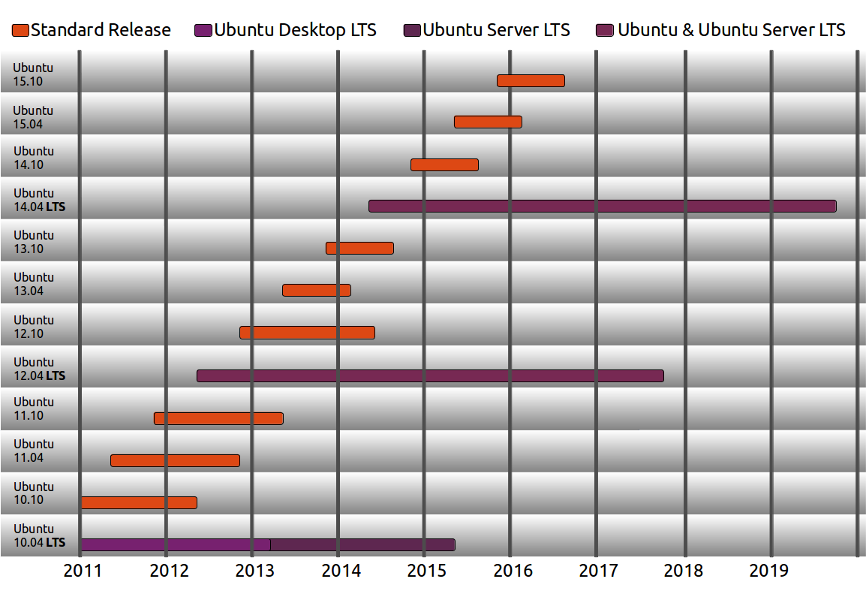
We produce a new Ubuntu Desktop and Ubuntu Server release every six months [diagram below]. That means you’ll always have the latest and greatest applications that the open source world has to offer. Ubuntu is designed with security in mind. You get free security updates for at least 18 months on the desktop and server.

A new LTS version is released every 2 years. In previous releases, a Long Term Support (LTS) version had 3 years support on Ubuntu (Desktop) and 5 years on Ubuntu Server. Starting with Ubuntu 12.04 LTS, both versions will receive 5 years support. There is no extra fee for the LTS version; we make our very best work available to everyone on the same free terms. Upgrades to new versions of Ubuntu are and always will be free of charge.

The LTS designation applies only to specific subsets of the Ubuntu archive. The LTS may not apply to all flavors and remixes of Ubuntu. For example, for 8.04 LTS, Kubuntu chose to move to KDE 4.0 and didn’t issue an LTS release. In 10.04, the Netbook Edition was not an LTS. The project will decide which flavors will be LTS and the support duration for each, early in the LTS development cycle.

Some of the latest support windows are illustrated below:

ubuntu-release-cycle-2.png

Release Plan Details

  1. We are more conservative in our package merge with Debian, auto-synching with Debian testing, instead of Debian unstable.
  2. We start stabilizing the release early by significantly limiting the number of new features. We will choose which features we package into the LTS release, versus which ones we leave out and allow for users to optionally download and use from a separate archive.
  3. Avoid structural changes as far as possible, such as changing the default set of applications, lots of library transitions, or system layer changes (example: introducing KMS or hal → DeviceKit would not have been appropriate changes in a LTS).

Furthermore, we define the LTS to be:

  • Enterprise Focused: We are targeting server and multiple desktop installations, where the average user is moderately risk averse.
  • Compatible with New Hardware: We will make point releases throughout the development cycle to provide functional support for new server and desktop hardware.
  • More Tested: We will shorten the development window and extend the Beta cycle to allow for more testing and bug fixing

and clearly state that it is not:

  • A Feature-Based Release: We will focus on hardening functionality of existing features, versus introducing new ones1, except for in the areas of Online Services and Desktop Experience2.
    • 1. Exceptions for priority projects will be documented.~
      ~-2. Because these two areas of development are relatively new, they still require new features to satisfy the original reasons for their creation
  • Cutting Edge: Instead of doing an automatic full package import from Debian unstable, we will do it from Debian testing1. The benefit we gain from not introducing new bugs and/or regressions outweighs the new features and/or fixes we often get from unstable.
    • 1. We reserve the right to selectively pull in updates from unstable, if we believe the stability of the package in Debian is better than what is in the current Ubuntu archive.


LTS Schedule

To support our goal of ensuring stability, we plan to make a small number of changes to the release schedule:

  1. Reduced Alpha Stage: Because we will have substantially less new code, we can reduce the number of Alpha releases, and extend the Beta stage to allow for more system testing.
  2. Two Beta Releases: We generally get more bugs filed in the Beta stage because of the increase in user base. In order to address more of these issues, we will provide an additional Beta release.

Quoted from here.

Linux check all ips in a subnet with ping

Let’s say you have a subnet 192.168.1.0 / 24 and you want to scan all ip’s to see if any hosts are up:

Type the following command, enter:


$ for ip in $(seq 1 254); do ping -c 1 192.168.1.$ip>/dev/null; [ $? -eq 0 ] && echo “192.168.1.$ip UP” || : ; done

Output:

192.168.1.65 UP
192.168.1.66 UP
192.168.1.70 UP
192.168.1.76 UP
192.168.1.253 UP
192.168.1.254 UP

Missing Perl module with phptop how to fix.

While trying to run phptop after unzipping it I get the following error:

[root@torino phptop-0.5.3]# ./phptop 
Can't locate Term/Size.pm in @INC (@INC contains: /usr/local/lib/perl5 /usr/local/share/perl5 /usr/lib/perl5/vendor_perl /usr/share/perl5/vendor_perl /usr/lib/perl5 /usr/share/perl5 .) at ./phptop line 24.
BEGIN failed--compilation aborted at ./phptop line 24.
[root@torino phptop-0.5.3]#


To fix it I had to follow the coming steps:

[root@torino phptop-0.5.3]# yum install cpan
Loaded plugins: fastestmirror, refresh-packagekit, security
Loading mirror speeds from cached hostfile
 * base: it.centos.contactlab.it
 * epel: mirror.karneval.cz
 * extras: it.centos.contactlab.it
 * updates: mirror.bofh.so
Setting up Install Process
Resolving Dependencies
--> Running transaction check
---> Package perl-CPAN.i686 0:1.9402-127.el6 will be installed
--> Finished Dependency Resolution
Dependencies Resolved
================================================================================
 Package Arch Version Repository Size
================================================================================
Installing:
 perl-CPAN i686 1.9402-127.el6 base 244 k
Transaction Summary
================================================================================
Install 1 Package(s)
Total download size: 244 k
Installed size: 663 k
Is this ok [y/N]: y
Downloading Packages:
perl-CPAN-1.9402-127.el6.i686.rpm | 244 kB 00:00 
Running rpm_check_debug
Running Transaction Test
Transaction Test Succeeded
Running Transaction
 Installing : perl-CPAN-1.9402-127.el6.i686 1/1 
 Verifying : perl-CPAN-1.9402-127.el6.i686 1/1
Installed:
 perl-CPAN.i686 0:1.9402-127.el6
Complete!
[root@torino phptop-0.5.3]#

Then run cpan

[root@torino phptop-0.5.3]#cpan

And you will be asked  whether to accept default answers just press <ENTER>/

Lots of test later you are presented with the cpan prompt tyoe install Term::Size as follows:

  • ommit: wrote '/usr/share/perl5/CPAN/Config.pm'
    Terminal does not support AddHistory.
    cpan shell -- CPAN exploration and modules installation (v1.9402)
    Enter 'h' for help.
    cpan[1]> install Term::Size

After a long verbose build process assuming all went well ( you need internet connectivity to perform this step) type quit at the prompt as so:

cpan[2]> quit

This returns you to the shell prompt:

[root@torino phptop-0.5.3]# ./phptop 
No phptop records found.
[root@torino phptop-0.5.3]#

Voila !!! the program is working.The error is due to the lack of page reads as yet but the program compiled (JIT) and ran.


VIM cheat sheet

The list of Vim commands >

Working with files
Vim command Action
:e filename Open a new file. You can use the Tab key for automatic file name completion, just like at the shell command prompt.
:w filename Save changes to a file. If you don’t specify a file name, Vim saves as the file name you were editing. For saving the file under a different name, specify the file name.
:q Quit Vim. If you have unsaved changes, Vim refuses to exit.
:q! Exit Vim without saving changes.
:wq Write the file and exit.
: x Almost the same as :wq, write the file and exit if you’ve made changes to the file. If you haven’t made any changes to the file, Vim exits without writing the file.
These Vim commands and keys work both in command mode and visual mode.
Vim command Action
j or Up Arrow Move the cursor up one line.
k or Down Arrow Down one line.
h or Left Arrow Left one character.
l or Right Arrow Right one character.
e To the end of a word.
E To the end of a whitespace-delimited word.
b To the beginning of a word.
B To the beginning of a whitespace-delimited word.
0 To the beginning of a line.
^ To the first non-whitespace character of a line.
$ To the end of a line.
H To the first line of the screen.
M To the middle line of the screen.
L To the the last line of the screen.
:n Jump to line number n. For example, to jump to line 42, you’d type :42
Inserting and overwriting text
Vim command Action
i Insert before cursor.
I Insert to the start of the current line.
a Append after cursor.
A Append to the end of the current line.
o Open a new line below and insert.
O Open a new line above and insert.
C Change the rest of the current line.
r Overwrite one character. After overwriting the single character, go back to command mode.
R Enter insert mode but replace characters rather than inserting.
The ESC key Exit insert/overwrite mode and go back to command mode.
Deleting text
Vim command Action
x Delete characters under the cursor.
X Delete characters before the cursor.
dd or :d Delete the current line.
Entering visual mode
Vim command Action
v Start highlighting characters. Use the normal movement keys and commands to select text for highlighting.
V Start highlighting lines.
The ESC key Exit visual mode and return to command mode.
Editing blocks of text
Note: the Vim commands marked with (V) work in visual mode, when you’ve selected some text. The other commands work in the command mode, when you haven’t selected any text.
Vim command Action
~ Change the case of characters. This works both in visual and command mode. In visual mode, change the case of highlighted characters. In command mode, change the case of the character uder cursor.
> (V) Shift right (indent).
< (V) Shift left (de-indent).
c (V) Change the highlighted text.
y (V) Yank the highlighted text. In Windows terms, “copy the selected text to clipboard.”
d (V) Delete the highlighted text. In Windows terms, “cut the selected text to clipboard.”
yy or :y or Y Yank the current line. You don’t need to highlight it first.
dd or :d Delete the current line. Again, you don’t need to highlight it first.
p Put the text you yanked or deleted. In Windows terms, “paste the contents of the clipboard”. Put characters after the cursor. Put lines below the current line.
P Put characters before the cursor. Put lines above the current line.
Undo and redo
Vim command Action
u Undo the last action.
U Undo all the latest changes that were made to the current line.
Ctrl + r Redo.
Vim command Action
/pattern Search the file for pattern.
n Scan for next search match in the same direction.
N Scan for next search match but opposite direction.
Replace
Vim command Action
:rs/foo/bar/a Substitute foo with barr determines the range and a determines the arguments.
The range (r) can be
nothing Work on current line only.
number Work on the line whose number you give.
% The whole file.
Arguments (a) can be
g Replace all occurrences in the line. Without this, Vim replaces only the first occurrences in each line.
i Ignore case for the search pattern.
I Don’t ignore case.
c Confirm each substitution. You can type y to substitute this match, n to skip this match, a to substitute this and all the remaining matches (“Yes to all”), and q to quit substitution.
Examples
:452s/foo/bar/ Replace the first occurrence of the word foo with bar on line number 452.
:s/foo/bar/g Replace every occurrence of the word foo with bar on current line.
:%s/foo/bar/g Replace every occurrence of the word foo with bar in the whole file.
:%s/foo/bar/gi The same as above, but ignore the case of the pattern you want to substitute. This replaces fooFOOFoo, and so on.
:%s/foo/bar/gc Confirm every substitution.
:%s/foo/bar/c For each line on the file, replace the first occurrence of foo with bar and confirm every substitution.

Original Post : Here at tuXfiles.org