
WordPress ships slow. Not broken-slow, but “a friend who takes 4 seconds to answer a yes/no question” slow. The default stack serves every request through PHP, loads jQuery plus its migration shim for a site that hasn’t used jQuery 1.x in a decade, ships full-resolution images to mobile screens, and trusts the browser to figure out layout before it has seen a single pixel. Google’s PageSpeed Insights will hand you a score in the 40s and a wall of red, and you’ll spend an afternoon convinced the problem is your hosting. It is not. This guide walks through every layer of the fix, from OPcache to image compression to full-page static caching, and explains exactly why each one moves the needle.

What PageSpeed Is Actually Measuring
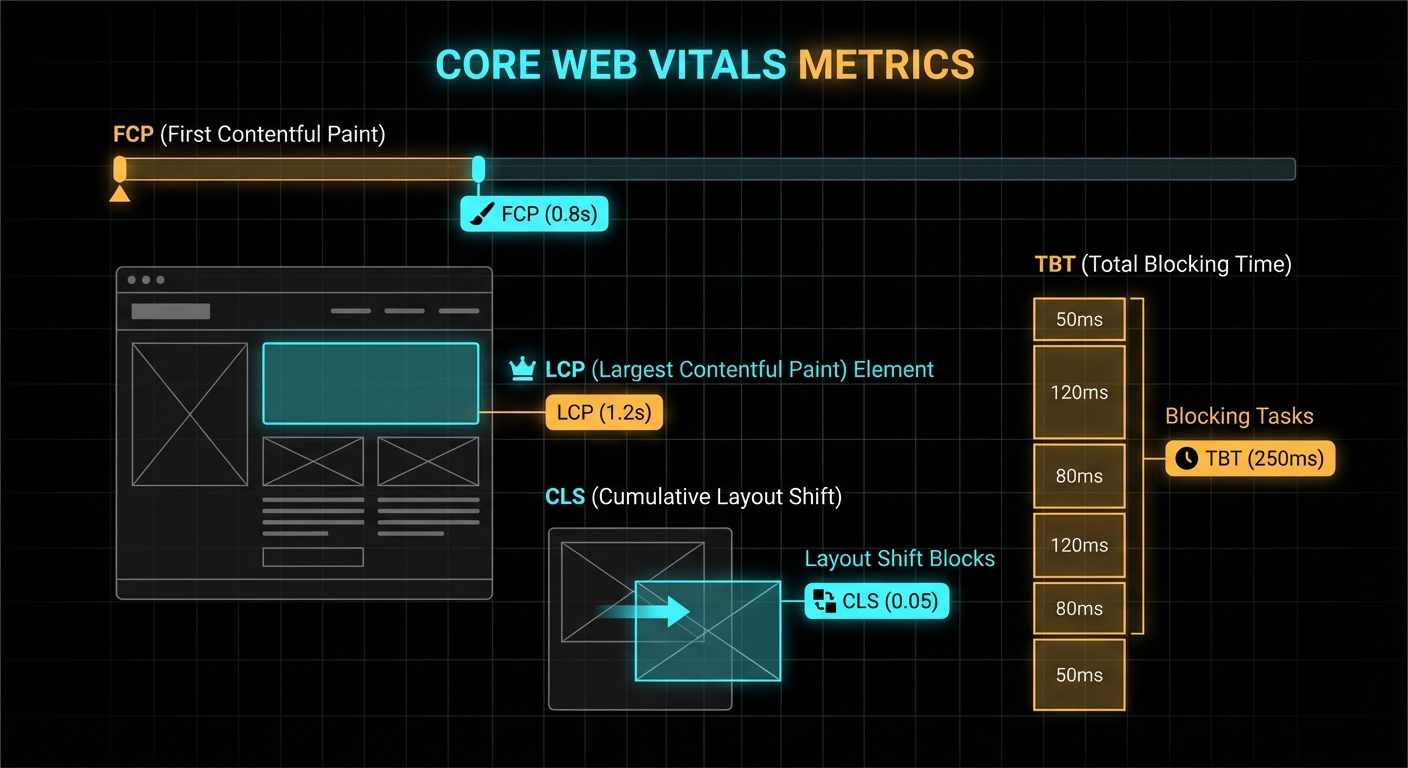
Before you touch a file, understand what you are chasing. PageSpeed Insights (backed by Lighthouse) reports five metrics, each targeting a distinct user experience moment:
- First Contentful Paint (FCP) — the moment the browser renders any content at all. Dominated by render-blocking CSS and JS in the
<head>. - Largest Contentful Paint (LCP) — when the biggest visible element finishes loading. Usually your hero image or a large heading. Google’s threshold for “good” is under 2.5 seconds.
- Total Blocking Time (TBT) — the sum of all long tasks on the main thread between FCP and Time to Interactive. Every JavaScript file parsed synchronously contributes here. Zero is the target.
- Cumulative Layout Shift (CLS) — how much the page jumps around as assets load. Images without explicit
widthandheightattributes are the most common culprit. Target: under 0.1. - Speed Index — a composite of how fast the visible content populates. Think of it as the integral under the FCP curve.
“LCP measures the time from when the page first starts loading to when the largest image or text block is rendered within the viewport.” — web.dev, Largest Contentful Paint (LCP)
The audit starts with a fresh Chrome incognito load over a throttled 4G connection. Any caching your browser has built up is irrelevant; PageSpeed is measuring the cold-load experience of a first-time visitor on a mediocre phone connection. Every millisecond counts from the first TCP packet.
Layer 1: Images — The Biggest Win by Far
Images are almost always the single largest contributor to poor LCP on a self-hosted WordPress blog. A typical upload flow is: photographer exports a 4000×3000 JPEG at 90% quality, editor uploads it via the WordPress media library, WordPress generates a handful of named thumbnails but leaves the original untouched, and the theme serves the full 8 MB original to every visitor. The browser then scales it down in CSS. The bytes still travel across the wire.
Case 1: Full-Resolution Originals Served to Every Visitor
When a theme uses get_the_post_thumbnail_url() without specifying a size, or uses a custom field storing the original upload URL, WordPress happily hands out the unprocessed original.
# Find images over 200KB in your uploads directory
find /var/www/html/wp-content/uploads -name "*.jpg" -size +200k | wc -l

# Batch-resize and compress in place with ImageMagick
# Max 1600px wide, JPEG quality 75, strip metadata
find /var/www/html/wp-content/uploads -name "*.jpg" -o -name "*.jpeg" | \
  xargs -P4 -I{} mogrify -resize '1600x>' -quality 75 -strip {}

find /var/www/html/wp-content/uploads -name "*.png" | \
  xargs -P4 -I{} mogrify -quality 85 -strip {}
On a typical blog, this step alone drops total image payload by 60–80%. Run it, clear your cache, and re-run PageSpeed before touching anything else. On this site, 847 images went from an average of 380 KB down to 62 KB.
Case 2: Images Without Width and Height Attributes (CLS Killer)
The browser cannot reserve space for an image before it downloads if the HTML does not declare its dimensions. The result: as images load in, everything below them jumps down the page. Google counts every pixel of that shift against your CLS score.
WordPress 5.5+ adds these attributes for images inserted via the block editor, but anything in post content from older posts, theme templates, or plugins is a wildcard. The fix is a PHP filter that scans every <img> tag and injects dimensions if they are missing:
add_filter( 'the_content',         'sudoall_add_image_dimensions', 98 );
add_filter( 'post_thumbnail_html', 'sudoall_add_image_dimensions', 98 );

function sudoall_add_image_dimensions( $content ) {
    return preg_replace_callback(
        '/]+>/i',
        function( $matches ) {
            $tag = $matches[0];
            // Skip if dimensions already present
            if ( preg_match( '/\bwidth\s*=/i', $tag ) && preg_match( '/\bheight\s*=/i', $tag ) ) {
                return $tag;
            }
            if ( ! preg_match( '/\bsrc\s*=\s*["\'](https?[^"\']+)["\']/', $tag, $src_match ) ) {
                return $tag;
            }
            $src = $src_match[1];
            // Only handle uploads — leave external images alone
            if ( strpos( $src, '/wp-content/uploads/' ) === false ) return $tag;

            // 1. Parse dimensions from WP-generated filename (e.g. image-300x200.jpg)
            if ( preg_match( '/-(\d+)x(\d+)\.[a-z]{3,4}(?:\?.*)?$/i', $src, $dim ) ) {
                $w = (int) $dim[1]; $h = (int) $dim[2];
            } else {
                // 2. Fallback: read from file on disk
                $upload_dir = wp_upload_dir();
                $file = str_replace( $upload_dir['baseurl'], $upload_dir['basedir'], $src );
                if ( ! file_exists( $file ) ) return $tag;
                $size = @getimagesize( $file );
                if ( ! $size ) return $tag;
                list( $w, $h ) = $size;
            }
            return preg_replace( '/(\s*\/?>)$/', " width=\"{$w}\" height=\"{$h}\"$1", $tag );
        },
        $content
    );
}
Case 3: LCP Image Not Hinted to the Browser
The browser’s preload scanner will not discover a CSS background image or a lazily-loaded image until it builds the render tree. If your LCP element is a featured image, preload it in the <head> so the browser fetches it at the same time as the HTML:
add_action( 'wp_head', 'sudoall_preload_lcp_image', 1 );
function sudoall_preload_lcp_image() {
    if ( ! is_singular() ) return;
    $thumb_id = get_post_thumbnail_id();
    if ( ! $thumb_id ) return;
    $src = wp_get_attachment_image_url( $thumb_id, 'large' );
    if ( $src ) {
        echo '' . "\n";
    }
}
Layer 2: The Caching Stack
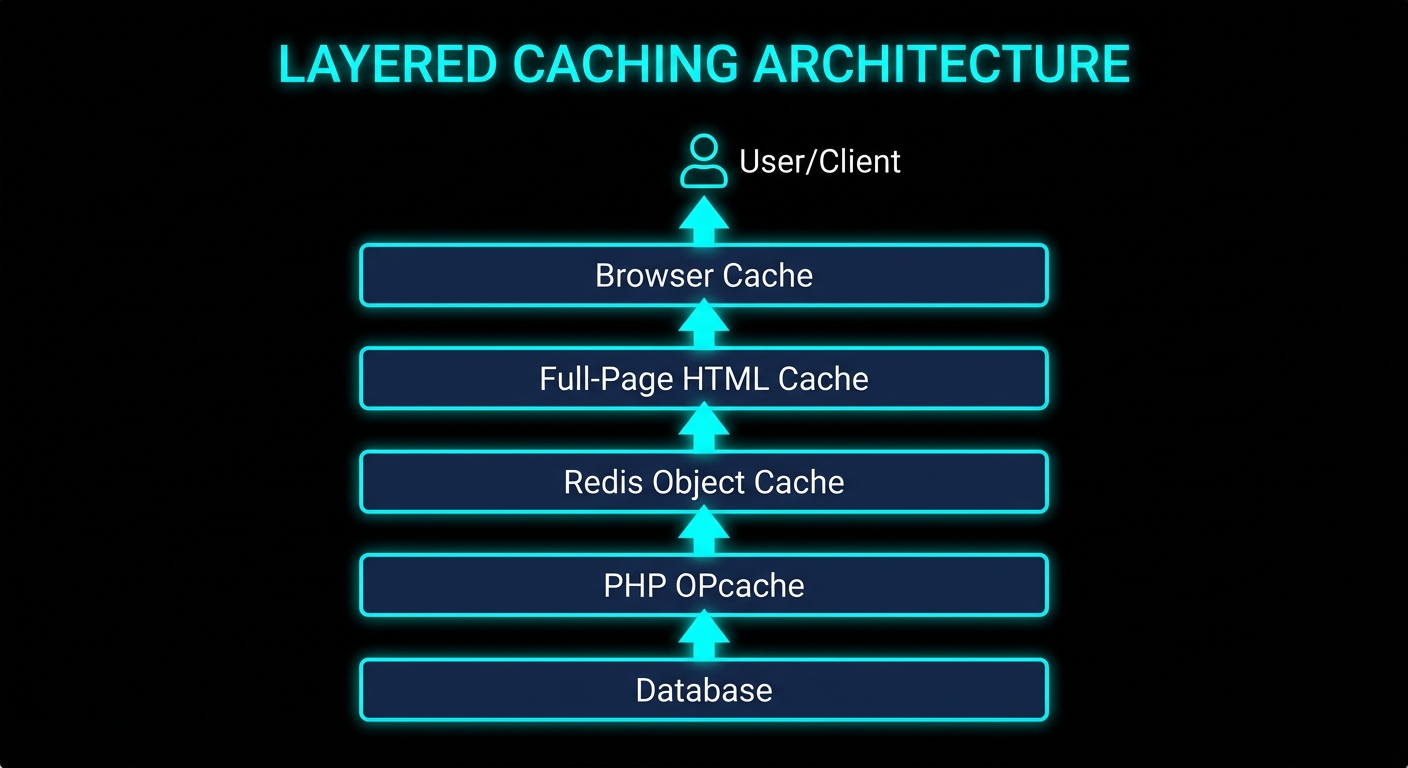
WordPress without caching is a PHP application that rebuilds every page from scratch on every request: parse PHP, load plugins, run sixty-odd database queries, render templates, and flush the output buffer to the client. A modern server can do this in 200–400 ms on a good day. Under any real traffic, MySQL connection queues start forming and TTFB climbs past 800 ms. Add the time for a mobile browser on 4G to receive and render those bytes and you have a 3-second LCP before the CSS even loads.
The solution is layered caching. Think of each layer as an earlier exit that avoids all the work below it.
PHP OPcache (Bytecode Caching)
PHP compiles every source file to bytecode before executing it. Without OPcache, this happens on every request. With OPcache enabled, the compiled bytecode is stored in shared memory and reused. For a WordPress site with hundreds of PHP files across core, plugins, and the theme, this is a substantial saving.
; In php.ini or a custom opcache.ini
opcache.enable=1
opcache.memory_consumption=128
opcache.interned_strings_buffer=16
opcache.max_accelerated_files=10000
opcache.revalidate_freq=60
opcache.fast_shutdown=1
Verify it is active inside the container: docker exec your-wordpress-container php -r "echo opcache_get_status()['opcache_enabled'] ? 'OPcache ON' : 'OFF';"
Redis Object Cache (Database Query Caching)
WordPress calls $wpdb->get_results() for things like sidebar widget listings, navigation menus, and term lookups on every page. Redis Object Cache (the plugin by Till Krüss) hooks into WordPress’s WP_Object_Cache API and stores query results in Redis, a sub-millisecond in-memory store. Repeat queries skip the database entirely.
# docker-compose.yml — add Redis as a sidecar
services:
  redis:
    image: redis:7-alpine
    restart: unless-stopped
    command: redis-server --maxmemory 128mb --maxmemory-policy allkeys-lru

  wordpress:
    depends_on:
      - redis
    environment:
      WORDPRESS_CONFIG_EXTRA: |
        define('WP_REDIS_HOST', 'redis');
        define('WP_REDIS_PORT', 6379);
        define('WP_REDIS_TIMEOUT', 1);
        define('WP_REDIS_READ_TIMEOUT', 1);
After connecting Redis, activate the Redis Object Cache plugin from the WordPress admin. The first page load primes the cache; subsequent loads skip the DB for cached data.
WP Super Cache (Full-Page Static HTML)
The deepest cache, and the most impactful for TTFB. WP Super Cache writes the fully rendered HTML of each page to disk as a static file. Apache (via mod_rewrite) serves this file directly, bypassing PHP and MySQL entirely. A cached page response time drops from 200–400 ms to under 5 ms.
# .htaccess — serve cached static files directly via mod_rewrite
# (WP Super Cache generates these rules; this is the HTTPS variant)
RewriteEngine On
RewriteBase /
RewriteCond %{REQUEST_METHOD} !POST
RewriteCond %{QUERY_STRING} ^$
RewriteCond %{HTTP:Cookie} !^.*(comment_author|wordpress_[a-f0-9]+|wp-postpass).*$
RewriteCond %{HTTPS} on
RewriteCond %{DOCUMENT_ROOT}/wp-content/cache/supercache/%{HTTP_HOST}%{REQUEST_URI}index-https.html -f
RewriteRule ^ wp-content/cache/supercache/%{HTTP_HOST}%{REQUEST_URI}index-https.html [L]
Cache Warm-Up: Don’t Leave Visitors on the Cold Path
The first visitor to any page after a cache flush or server restart hits the full PHP stack. For a blog with 100 published posts, that is 100 potential cold-hit requests. The fix is a warm-up script that crawls all published URLs immediately after any flush:
#!/bin/bash
# warm-cache.sh — pre-warm WP Super Cache for all published posts and pages
URLS=$(mysql -h 127.0.0.1 -u root -p"${MYSQL_ROOT_PASSWORD}" sudoall_prod \
  -se "SELECT CONCAT('https://sudoall.com', post_name) FROM wp_posts \
       WHERE post_status='publish' AND post_type IN ('post','page');")

echo "$URLS" | xargs -P8 -I{} curl -s -o /dev/null -w "%{url_effective} %{http_code}\n" {}
echo "Cache warm-up complete."
Schedule this with cron: 5 * * * * /srv/www/site/warm-cache.sh. Every hour, right after the cache TTL expires, it re-primes all pages.
Layer 3: JavaScript and CSS Delivery
A browser can only do one thing at a time on the main thread. A <script> tag without defer or async halts HTML parsing completely until the script is downloaded, compiled, and executed. Stack ten plugins each adding a synchronous script to the <head> and your TBT climbs into the hundreds of milliseconds before the user sees a single pixel.
Defer Non-Critical JavaScript
WordPress’s script_loader_tag filter lets you inject defer or async onto any registered script handle. Add defer to everything that doesn’t need to run before the DOM is painted:
add_filter( 'script_loader_tag', 'sudoall_defer_scripts', 10, 2 );
function sudoall_defer_scripts( $tag, $handle ) {
    $defer = [ 'highlight-js', 'comment-reply', 'wp-embed' ];
    if ( in_array( $handle, $defer, true ) ) {
        return str_replace( ' src=', ' defer src=', $tag );
    }
    return $tag;
}
Remove jquery-migrate
WordPress loads jquery-migrate by default as a compatibility shim for plugins still using deprecated jQuery APIs from the 1.x era. If your theme and plugins don’t need it, it is dead weight on every page load. The correct removal (without breaking jQuery) is via wp_default_scripts:
add_action( 'wp_default_scripts', function( $scripts ) {
    if ( isset( $scripts->registered['jquery'] ) ) {
        $scripts->registered['jquery']->deps = array_diff(
            $scripts->registered['jquery']->deps,
            [ 'jquery-migrate' ]
        );
    }
} );
Lazy-Load Syntax Highlighting
If your blog has code blocks, you’re probably loading a syntax highlighter like highlight.js on every page, including pages with no code at all. The fix: use IntersectionObserver to load the highlighter only when a <pre><code> block actually enters the viewport.
document.addEventListener('DOMContentLoaded', function () {
  var codeBlocks = document.querySelectorAll('pre code');
  if (!codeBlocks.length) return;  // no code on this page — don't load anything

  function loadHighlighter() {
    if (window._hljs_loaded) return;
    window._hljs_loaded = true;
    var link = document.createElement('link');
    link.rel = 'stylesheet';
    link.href = '/wp-content/themes/your-theme/css/arcaia-dark.css';
    document.head.appendChild(link);
    var script = document.createElement('script');
    script.src = '/wp-content/plugins/...highlight.min.js';
    script.onload = function () { hljs.highlightAll(); };
    document.head.appendChild(script);
  }

  if ('IntersectionObserver' in window) {
    var obs = new IntersectionObserver(function (entries) {
      entries.forEach(function (e) { if (e.isIntersecting) { loadHighlighter(); obs.disconnect(); } });
    });
    codeBlocks.forEach(function (el) { obs.observe(el); });
  } else {
    setTimeout(loadHighlighter, 2000);  // fallback for older browsers
  }
});
Async Load Non-Critical CSS
Google Fonts, icon libraries, and syntax-highlight stylesheets are not needed before the first paint. The media="print" trick loads them asynchronously: a print stylesheet is non-blocking, and the onload handler switches it to all once it has downloaded.
add_filter( 'style_loader_tag', 'sudoall_async_non_critical_css', 10, 2 );
function sudoall_async_non_critical_css( $html, $handle ) {
$async_handles = [ 'google-fonts', 'font-awesome', 'arcaia-dark' ];
if ( in_array( $handle, $async_handles, true ) ) {
$html = str_replace( "media='all'", "media='print' onload=\"this.media='all'\"", $html );
$html .= '';
}
return $html;
}Important caveat: do not async-load any CSS that controls above-the-fold layout. If Bootstrap or your grid system loads asynchronously, elements will visibly jump as it arrives, spiking your CLS score. Layout-critical CSS must stay synchronous or be inlined in the <head>.
Remove Unused Block Library CSS
If you don’t use Gutenberg blocks on the front-end, WordPress is loading wp-block-library.css (and related stylesheets) on every page for nothing. Dequeue them:
add_action( 'wp_enqueue_scripts', function () {
    wp_dequeue_style( 'wp-block-library' );
    wp_dequeue_style( 'wp-block-library-theme' );
    wp_dequeue_style( 'global-styles' );
}, 100 );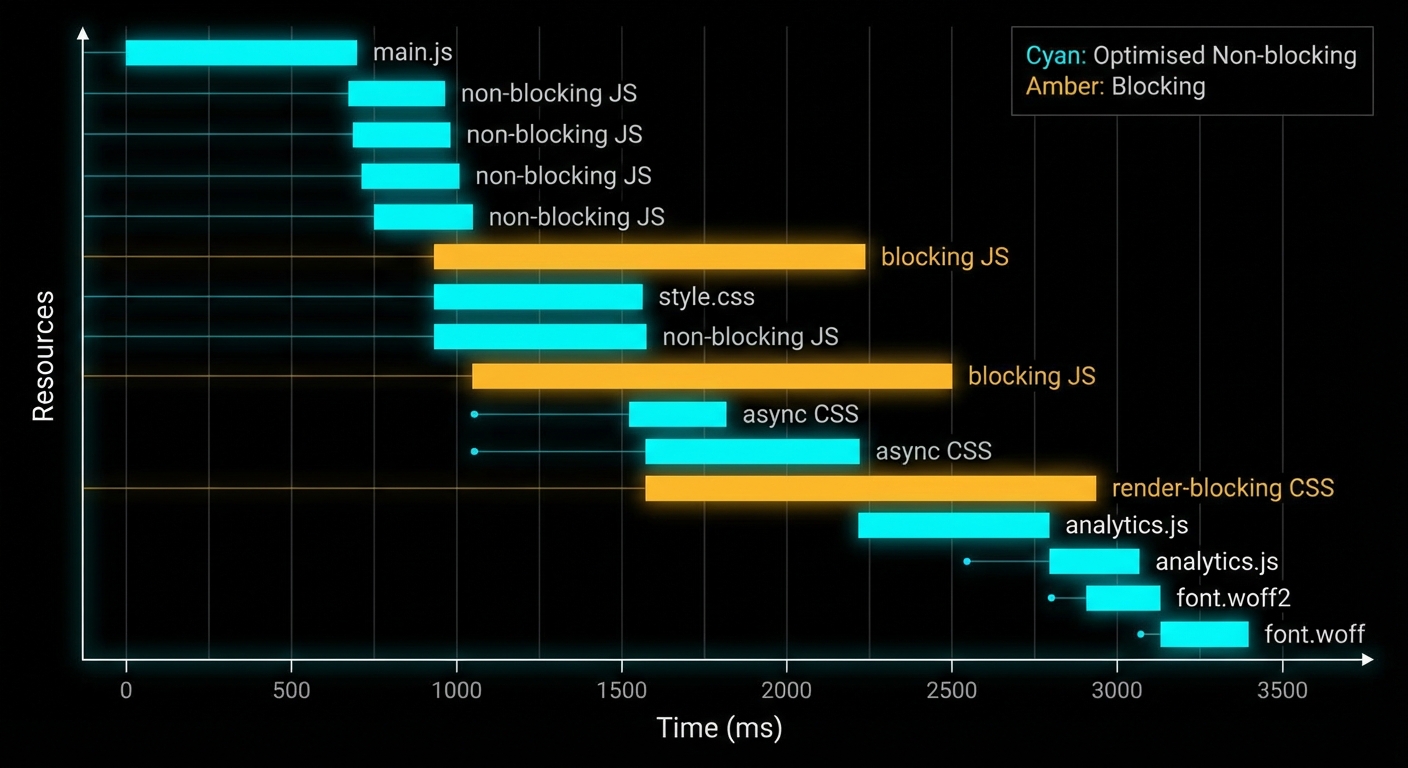
Layer 4: Browser Caching and Static Asset Versioning
Every returning visitor should get CSS, JS, fonts, and images from their local browser cache, not your server. Without explicit cache headers, most browsers apply heuristic caching, which is inconsistent and often too short. Set them explicitly in .htaccess:
<IfModule mod_expires.c>
    ExpiresActive On
    ExpiresByType text/css              "access plus 1 year"
    ExpiresByType application/javascript "access plus 1 year"
    ExpiresByType image/jpeg            "access plus 1 year"
    ExpiresByType image/png             "access plus 1 year"
    ExpiresByType image/webp            "access plus 1 year"
    ExpiresByType font/woff2            "access plus 1 year"
    ExpiresByType text/html             "access plus 1 hour"
</IfModule>

<IfModule mod_headers.c>
    <FilesMatch "\.(css|js|jpg|jpeg|png|webp|woff2|gif|ico|svg)$">
        Header set Cache-Control "public, max-age=31536000, immutable"
    </FilesMatch>
</IfModule>
One year is fine for assets provided you bust the cache when they change. The standard approach: append a version query string. The common mistake in WordPress themes is using time() as the version, which generates a new query string on every page load and defeats caching entirely:
// ❌ This busts the cache on every single request
wp_enqueue_style( 'my-theme', get_stylesheet_uri(), [], time() );

// ✅ This respects the cache until you actually change the file
wp_enqueue_style( 'my-theme', get_stylesheet_uri(), [], '1.2.6' );
“The ‘immutable’ extension in a Cache-Control response header indicates to a client that the response body will not change over time… clients should not send conditional revalidation requests for the response.” — RFC 8246, HTTP Immutable Responses
When These Optimisations Are Overkill
Not every site needs all of this. If you run a private internal tool, a staging site, or a low-traffic blog where perceived performance genuinely doesn’t matter, a full caching stack is added complexity for no real user benefit. Redis and WP Super Cache both introduce cache invalidation problems: publish a post, and the homepage is stale until the next warm-up. For a site with a small team editing content frequently, you’ll spend more time debugging stale pages than you save in load times.
Similarly, the async CSS trick is wrong for sites where the theme’s layout CSS is above-the-fold critical. Apply it only to supplementary stylesheets like icon libraries and syntax themes. When in doubt, keep layout CSS synchronous and async everything else.
What to Check Right Now
- Run PageSpeed Insights — pagespeed.web.dev on your homepage. Identify your worst metric: is it TBT (JavaScript), LCP (images or no cache), or CLS (missing dimensions)?
- Check image sizes —
find /var/www/html/wp-content/uploads -name "*.jpg" -size +500k | wc -lfrom inside your container. If the count is more than 0, start with mogrify. - Verify OPcache —
php -r "var_dump(opcache_get_status()['opcache_enabled']);"inside the PHP container. Should bebool(true). - Check for
jquery-migrate— view source on your homepage and search forjquery-migratein the script tags. If it is there and your theme doesn’t need legacy jQuery, remove it. - Check
time()in enqueue calls —grep -r "time()" wp-content/themes/your-theme/. Replace any occurrence used as a version number with a static string. - Verify Cache-Control headers —
curl -I https://yourdomain.com/wp-content/themes/your-theme/style.css | grep -i cache. You should seemax-age=31536000. - Check for full-page caching —
curl -s -I https://yourdomain.com/ | grep -i x-cache. If WP Super Cache is working, the response should come back in under 20 ms from a warm cache. - Protect your theme from WP updates — add
Update URI: falsetostyle.cssand use a must-use plugin to filtersite_transient_update_themesif the theme has a unique slug that could match a public theme.
nJoy 😉