
FFmpeg is what happens when a Swiss Army knife gets a PhD in multimedia and then refuses to use a GUI. It can inspect, trim, remux, transcode, filter, normalise, package, stream, and automate media pipelines with almost rude efficiency. The catch is that it speaks in a grammar that is perfectly logical and completely uninterested in your vibes. Put one option in the wrong place and FFmpeg will not “figure it out”. It will hand you a lesson in command-line causality.
This version is built to be kept open in a tab: a smarter cheatsheet, a modern streaming reference, a compact guide to the commands worth memorising, and a curated collection of official docs plus a few YouTube resources that are actually worth your time. We will cover the fast path, the dangerous path, and the production path.
First Principles: How FFmpeg Actually Thinks
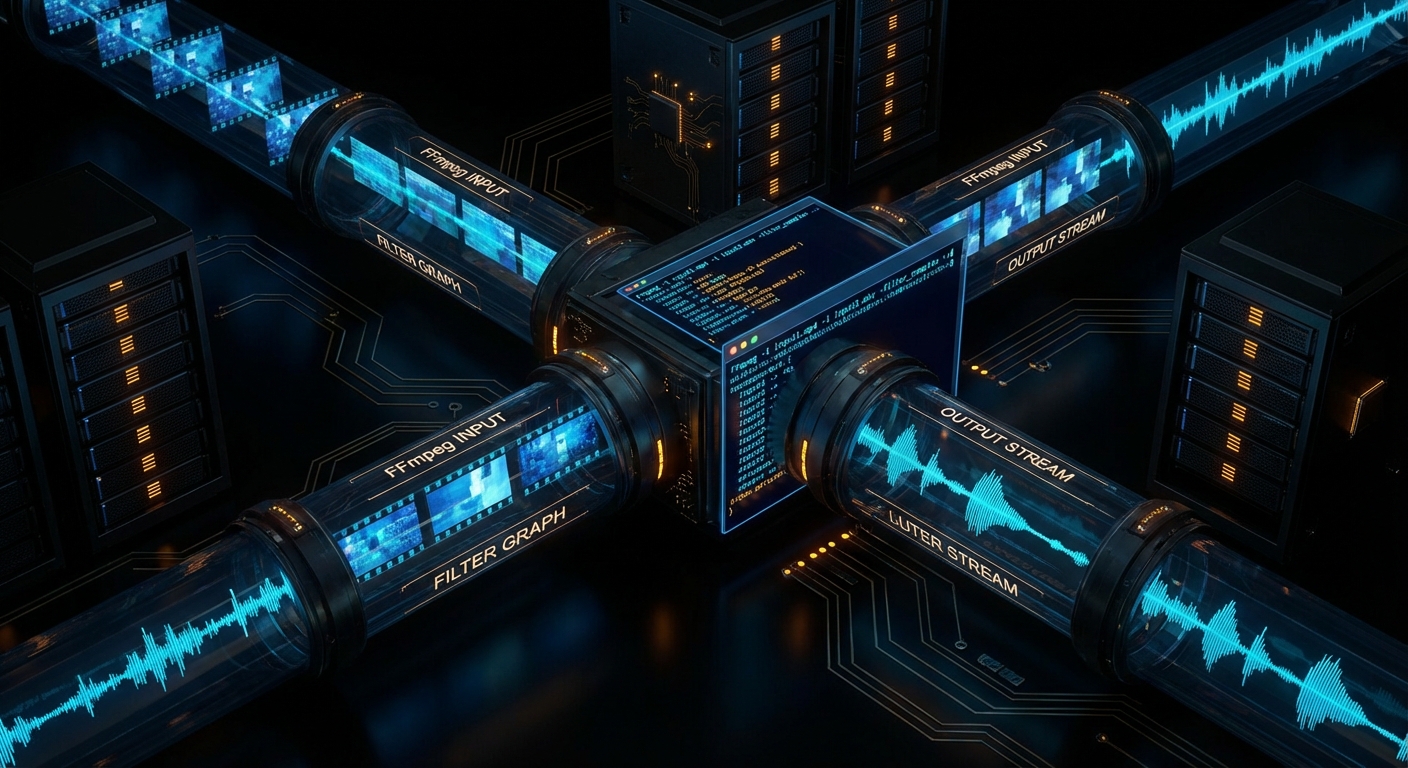
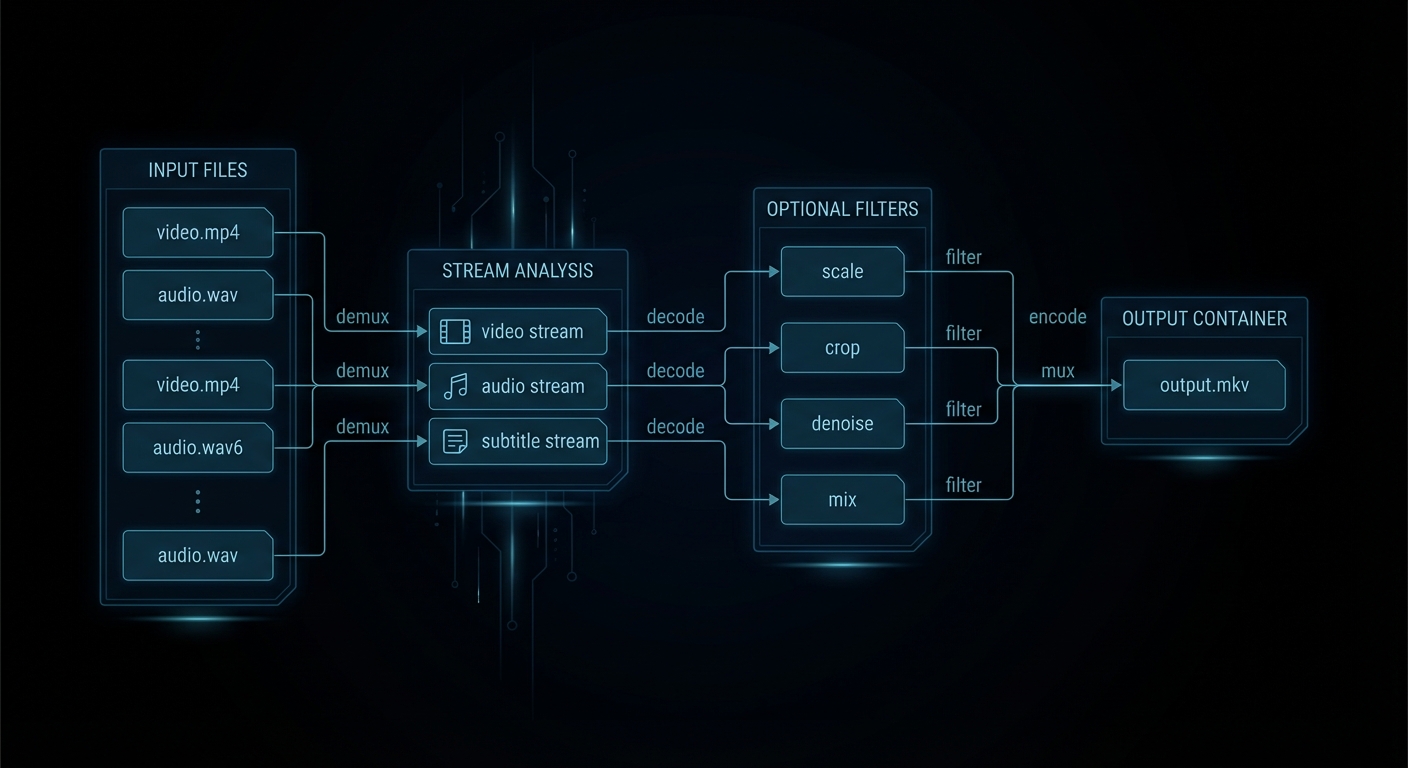
Most FFmpeg confusion begins with the wrong mental model. Humans think in files. FFmpeg thinks in inputs, streams, codecs, filters, mappings, and outputs. A single file can contain several streams: video, multiple audio tracks, subtitles, chapters, timed metadata. FFmpeg lets you inspect that structure, choose what to keep, decode only what needs changing, then write a new container deliberately.
The core trio is simple. ffmpeg transforms media. ffprobe tells you what is actually in the file. ffplay previews quickly. The smartest FFmpeg habit is also the least glamorous: ffprobe first, ffmpeg second. Guessing stream layout is how people end up with silent video, the wrong commentary track, or subtitles that evaporate on contact with MP4.
“As a general rule, options are applied to the next specified file. Therefore, order is important, and you can have the same option on the command line multiple times.” – FFmpeg Documentation,
ffmpegmanual
That rule explains most self-inflicted FFmpeg pain. Input options belong before the input they affect. Output options belong before the output they affect. You are not writing prose. You are wiring a pipeline.
ffmpeg [global-options] \
  [input-options] -i input1 \
  [input-options] -i input2 \
  [filter-and-map-options] \
  [output-options] output.ext
The other distinction worth burning into memory is container versus codec. MP4, MKV, MOV, WebM, TS, and M4A are containers. H.264, HEVC, AV1, AAC, Opus, MP3, ProRes, and DNxHR are codecs. Containers are boxes. Codecs are how the contents were compressed. A huge fraction of “FFmpeg is broken” reports are really “I changed the box and forgot the contents still have rules”.
The Fast Lane: Steal These Commands First
If you only memorise a dozen FFmpeg moves, make them these. They cover the majority of real-world jobs: inspect, copy, trim, transcode, subtitle, extract, package, and deliver.
| Job | Command | Use it when |
|---|---|---|
| Inspect a file properly | ffprobe -hide_banner input.mkv |
You want the truth about streams before touching anything. |
| Get scriptable metadata | ffprobe -v error -show_streams -show_format -of json input.mp4 |
Automation, CI, or conditional workflows. |
| Remux without quality loss | ffmpeg -i input.mkv -c copy output.mp4 |
The streams are already compatible, you just need a different container. |
| Trim quickly | ffmpeg -ss 00:01:30 -i input.mp4 -t 20 -c copy clip.mp4 |
Speed matters more than perfect frame accuracy. |
| Trim accurately | ffmpeg -i input.mp4 -ss 00:01:30 -t 20 -c:v libx264 -crf 18 -c:a aac clip.mp4 |
Tutorial clips, ad boundaries, subtitle-sensitive edits. |
| Good default MP4 for the web | ffmpeg -i input.mov -c:v libx264 -preset slow -crf 20 -c:a aac -b:a 192k -movflags +faststart output.mp4 |
You need a boring, reliable, browser-friendly output. Boring is a compliment here. |
| Resize while keeping aspect ratio | ffmpeg -i input.mp4 -vf "scale=1280:-2" -c:v libx264 -crf 20 -c:a aac output.mp4 |
Social uploads, previews, smaller delivery files. |
| Extract audio | ffmpeg -i input.mp4 -vn -c:a copy audio.m4a |
The source audio codec already fits the target container. |
| Normalise speech | ffmpeg -i input.wav -af "loudnorm=I=-16:TP=-1.5:LRA=11" output.wav |
Podcasts, tutorials, voice-overs, screen recordings. |
| Burn subtitles in | ffmpeg -i input.mp4 -vf "subtitles=subs.srt" -c:v libx264 -crf 18 -c:a copy output.mp4 |
You need one universal file and do not trust player subtitle support. |
| Contact sheet | ffmpeg -i input.mp4 -vf "fps=1/10,scale=320:-1,tile=4x4" -frames:v 1 sheet.png |
Fast content review without watching the whole thing. |
| Concatenate matching files | ffmpeg -f concat -safe 0 -i files.txt -c copy merged.mp4 |
Inputs share compatible codecs and parameters. |
“Streamcopy is useful for changing the elementary stream count, container format, or modifying container-level metadata. Since there is no decoding or encoding, it is very fast and there is no quality loss.” – FFmpeg Documentation,
ffmpegmanual
If you remember one performance trick, remember -c copy. It is the difference between “done in a second” and “let me hear all your laptop fans introduce themselves”.
Modern FFmpeg: Streaming, Packaging, and Delivery in 2026
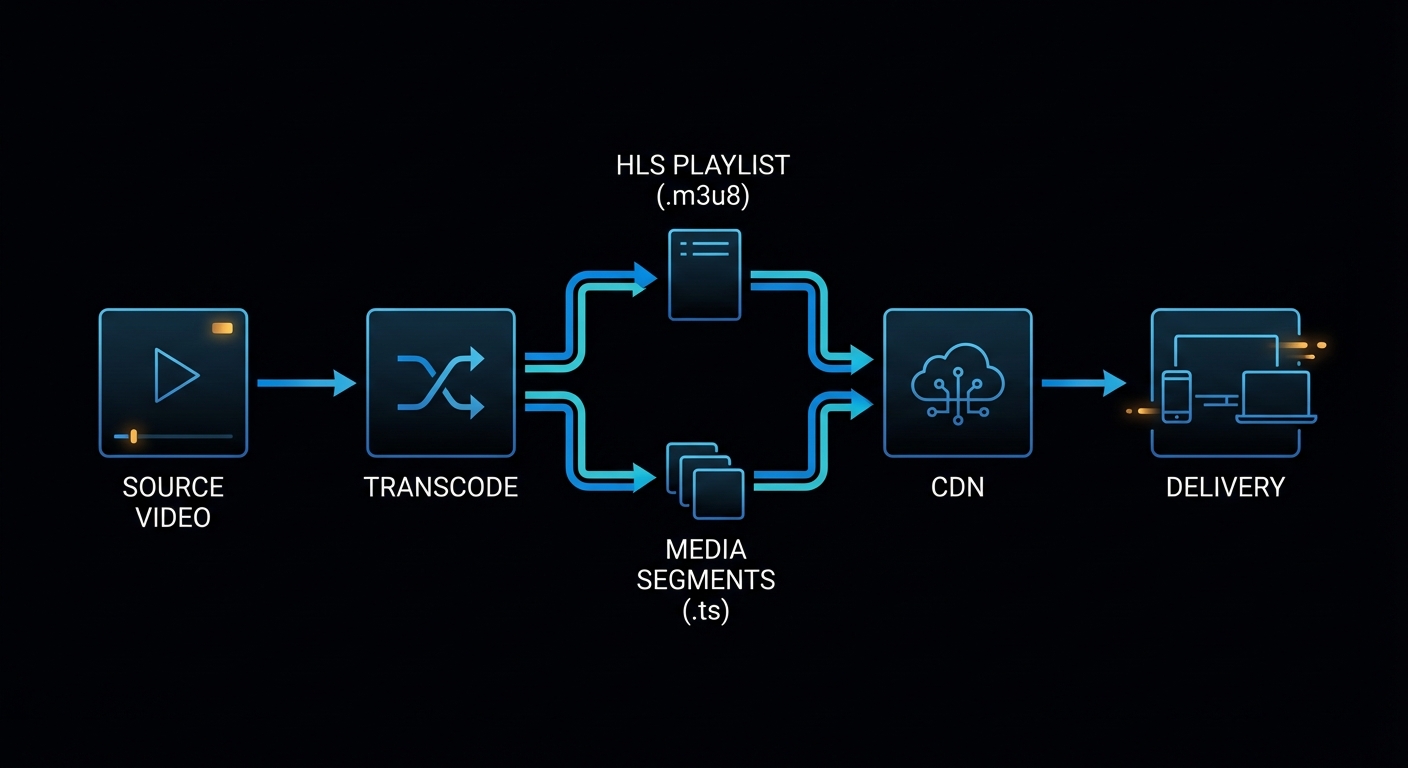
This is where a lot of older FFmpeg write-ups feel dusty. Modern usage is not just “convert AVI to MP4”. It is packaging for adaptive streaming, feeding live ingest pipelines, generating web-safe delivery files, and choosing the correct transport for the job instead of shouting at RTMP because it was popular in 2014.
“Apple HTTP Live Streaming muxer that segments MPEG-TS according to the HTTP Live Streaming (HLS) specification.” – FFmpeg Formats Documentation, HLS muxer
“WebRTC (Real-Time Communication) muxer that supports sub-second latency streaming according to the WHIP (WebRTC-HTTP ingestion protocol) specification.” – FFmpeg Formats Documentation, WHIP muxer
That is the modern landscape in miniature. FFmpeg is not only a transcoder. It is a packaging and transport tool. Use the right mode for the latency, compatibility, and scale you actually need.
| Goal | Best fit | Starter command |
|---|---|---|
| Simple browser playback | MP4 with H.264/AAC | ffmpeg -i in.mov -c:v libx264 -crf 20 -c:a aac -movflags +faststart out.mp4 |
| Adaptive VOD streaming | HLS or DASH | ffmpeg -i in.mp4 -c:v libx264 -c:a aac -hls_time 6 -hls_playlist_type vod stream.m3u8 |
| Traditional live platform ingest | RTMP | ffmpeg -re -i in.mp4 -c:v libx264 -c:a aac -f flv rtmp://server/app/key |
| More robust live transport over messy networks | SRT | ffmpeg -re -i in.mp4 -c:v libx264 -c:a aac -f mpegts "srt://host:port?mode=caller&latency=2000000" |
| Sub-second browser ingest | WHIP / WebRTC | ffmpeg -re -i in.mp4 -c:v libx264 -c:a opus -f whip "http://whip-endpoint.example/whip" |
Here are the practical streaming recipes worth saving.
HLS VOD
ffmpeg -i input.mp4 \
  -c:v libx264 -preset medium -crf 22 \
  -c:a aac -b:a 128k \
  -hls_time 6 \
  -hls_playlist_type vod \
  -hls_segment_filename "seg-%03d.ts" \
  stream.m3u8
DASH Packaging
ffmpeg -i input.mp4 \
  -c:v libx264 -preset medium -crf 22 \
  -c:a aac -b:a 128k \
  -f dash \
  manifest.mpd
RTMP Ingest
ffmpeg -re -i input.mp4 \
  -c:v libx264 -preset veryfast -b:v 4500k -maxrate 4500k -bufsize 9000k \
  -c:a aac -b:a 160k \
  -f flv rtmp://server/app/stream-key
SRT Ingest
ffmpeg -re -i input.mp4 \
  -c:v libx264 -preset veryfast -b:v 4500k \
  -c:a aac -b:a 160k \
  -f mpegts "srt://example.com:9000?mode=caller&latency=2000000"
That latency value is in microseconds, which is the kind of small detail that turns a calm afternoon into a surprisingly educational one.
WHIP / WebRTC Ingest
ffmpeg -re -i input.mp4 \
  -c:v libx264 -preset veryfast \
  -c:a opus -b:a 128k \
  -f whip "https://whip.example.com/rtc/v1/whip/?app=live&stream=demo"
WHIP is interesting because it reflects the current internet, not the old one. If your target is low-latency browser delivery, WHIP and WebRTC are now part of the real conversation, not just interesting acronyms for protocol collectors.
Hardware Acceleration Without Lying to Yourself
Modern FFmpeg usage also means knowing when to use hardware encoders. They are fantastic when throughput matters: live streaming, batch transcoding, preview generation, cloud pipelines, and “I have 800 files and would prefer not to age visibly today”. They are not always the best answer for maximum compression efficiency or highest archival quality.
The practical rule is simple. If you need the best quality-per-bit, software encoders like libx264, libx265, and libaom-av1 still matter. If you need speed and acceptable quality, hardware encoders are often the right move.
| Platform | Common encoder | Example |
|---|---|---|
| NVIDIA | h264_nvenc, hevc_nvenc, sometimes AV1 on newer cards |
ffmpeg -i in.mp4 -c:v h264_nvenc -b:v 6M -c:a aac out.mp4 |
| Intel / AMD on Linux | h264_vaapi, hevc_vaapi |
ffmpeg -hwaccel vaapi -hwaccel_output_format vaapi -i in.mp4 -c:v h264_vaapi -b:v 6M out.mp4 |
| macOS | h264_videotoolbox, hevc_videotoolbox |
ffmpeg -i in.mp4 -c:v h264_videotoolbox -b:v 6M -c:a aac out.mp4 |
The mistake people make is assuming hardware encode means “same quality, just faster”. Often it means “faster, different tuning, sometimes larger bitrate for comparable quality”. Be honest about the trade-off. This is not a moral issue. It is an engineering one.
Failure Cases That Keep Reappearing
Hunt and Thomas argue in The Pragmatic Programmer that good tools reward understanding over superstition. FFmpeg is one of the clearest examples of that principle on the command line. Here are the mistakes that keep burning people because they look plausible until you understand what FFmpeg is actually doing.
Case 1: You Wanted Speed, but Also Expected Frame Accuracy
Putting -ss before -i is fast. It is often not frame-accurate. That is a feature, not a betrayal.
# Fast, usually keyframe-aligned
ffmpeg -ss 00:10:00 -i input.mp4 -t 15 -c copy clip.mp4
If you need surgical cuts, decode and re-encode.
ffmpeg -i input.mp4 -ss 00:10:00 -t 15 \
  -c:v libx264 -crf 18 -c:a aac \
  clip-accurate.mp4
Case 2: You Asked for a Filter and Also Asked Not to Decode Anything
Filters need decoded frames. Stream copy avoids decoding. These are incompatible desires, not a creative workflow.
# Contradiction in command form
ffmpeg -i input.mp4 -vf "scale=1280:-2" -c copy output.mp4
The corrected pattern is to re-encode video and copy audio if it stays untouched.
ffmpeg -i input.mp4 -vf "scale=1280:-2" \
  -c:v libx264 -crf 20 \
  -c:a copy \
  output.mp4
Case 3: FFmpeg Picked the Wrong Streams Because You Left It to Fate
Auto-selection works until the source has multiple languages, commentary, descriptive audio, or subtitles. At that point, the polite thing to do is map explicitly.
# Ambiguous and sometimes unlucky
ffmpeg -i movie.mkv -c copy output.mp4
ffprobe -hide_banner movie.mkv
ffmpeg -i movie.mkv \
-map 0:v:0 \
-map 0:a:0 \
-map 0:s:0? \
-c:v copy -c:a copy -c:s mov_text \
output.mp4Case 4: Your Filtergraph Became Punctuation Soup
Once you move into -filter_complex, labels stop being optional niceties. They become the difference between clarity and a future headache.
# Hard to reason about
ffmpeg -i main.mp4 -i logo.png -i music.wav \
  -filter_complex "[0:v][1:v]overlay=20:20,scale=1280:-2;[2:a]volume=0.25[a]" \
  -map 0:v -map "[a]" output.mp4
Break the graph into named stages.
ffmpeg -i main.mp4 -i logo.png -i music.wav \
  -filter_complex "\
    [0:v][1:v]overlay=20:20[branded]; \
    [branded]scale=1280:-2[vout]; \
    [2:a]volume=0.25[aout]" \
  -map "[vout]" -map "[aout]" \
  -c:v libx264 -crf 20 -c:a aac \
  output.mp4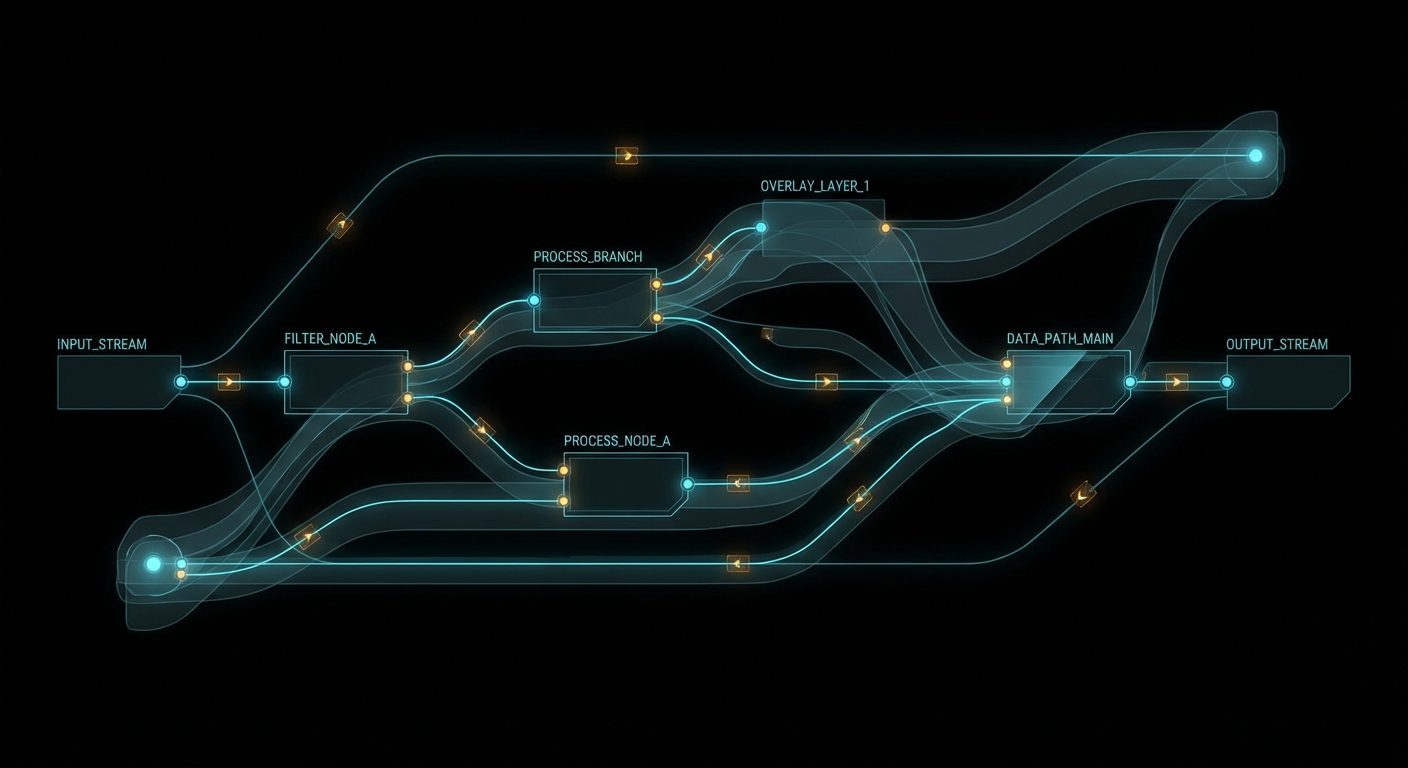
The Best Collection to Bookmark
If you want the strongest FFmpeg learning stack from basic to advanced, use this order. Not because it is trendy, but because it respects how people actually learn complicated tools: truth first, intuition second, repetition third.
- FFmpeg documentation portal – the source of truth for manuals, components, and the official reference tree.
ffmpegmanual – command order, stream copy, mapping, options, and the grammar of the tool.ffprobedocumentation – essential if your work is even slightly automated.- FFmpeg filters documentation – the real reference once you graduate from single-flag edits.
- FFmpeg formats documentation – where modern packaging, HLS, DASH, and WHIP start becoming concrete.
- FFmpeg protocols documentation – required reading once live ingest and transport enter the picture.
- STREAM MAPPING with FFMPEG – Everything You Need to Know – one of the best targeted explainers on a concept that causes disproportionate pain.
- FFMPEG & Filter Complex: A Visual Guide to the Filtergraph Usage – useful once the commands stop being linear.
- FFmpeg FILTERS: How to Use Them to Manipulate Your Videos – a solid bridge from basic edits to compositional thinking.
- Video and Audio Processing in FFMPEG – useful if you learn best by revisiting the topic from multiple angles.
The rule is simple: use YouTube for intuition, use the official docs for truth. The people who confuse those two categories usually end up with very confident commands and very confusing output.
What to Check Right Now
- Adopt one boring, reliable web delivery recipe – H.264, AAC, and
-movflags +faststartwill solve more problems than exotic cleverness. - Use
ffprobebefore every important transcode – that one habit prevents a ridiculous amount of avoidable breakage. - Reach for
-c copyfirst when no transformation is needed – it is faster and lossless, which is suspiciously close to magic. - Move from RTMP-only thinking to transport-aware thinking – HLS for compatibility, DASH for adaptive packaging, SRT for rougher networks, WHIP for low-latency browser workflows.
- Pick hardware encoders when throughput matters and software encoders when efficiency matters – this is the real trade-off, not ideology.
- Build a private snippets file – five good FFmpeg recipes will do more for your sanity than fifty vague memories.
FFmpeg rewards the same engineering habit that every serious tool rewards: inspect first, be explicit, automate the boring parts, and choose the transport and packaging that fit the real system in front of you. Do that and FFmpeg stops feeling like cryptic wizardry and starts feeling like infrastructure. Which is exactly what it is.
nJoy 😉